Three steps
Select the reference and target shapes
Shift-click to select the reference shape and the shapes you want to move. If you are editing text, press Esc to return to shape selection.
Choose the reference mode
On the AltShift tab, choose “First Shape” or “Last Shape.” Use “First Shape” when the shape you selected first should stay in place.
Run Align Left
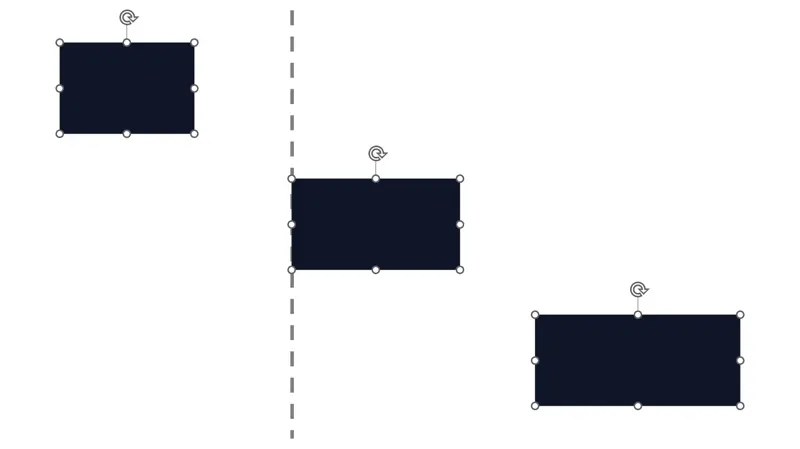
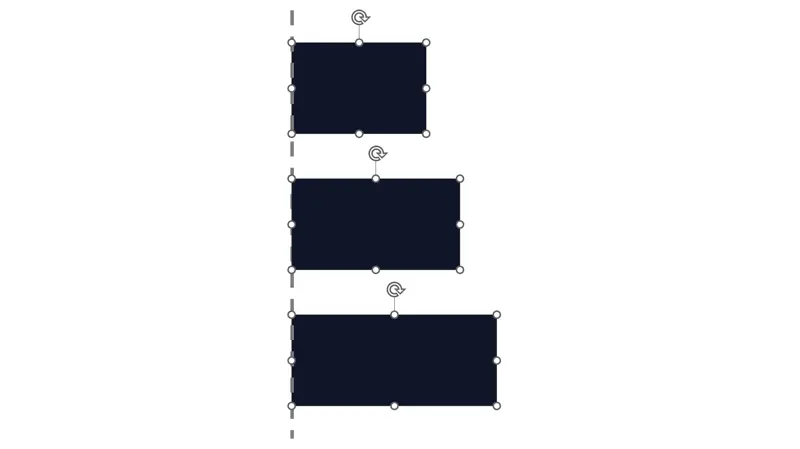
Open “Align to Ref.” and choose “Align Left.” Or press Alt → M → A → L in sequence. The other shapes move to the reference shape’s left edge.
When to use it
Align a new box with an existing layout, or bring headings and text boxes onto the same left edge. The same menu also offers right, top, bottom, horizontal-center, and vertical-center alignment.
Before you apply it
- Use Shift-click when selection order matters, and check that the intended shape stayed in place. With a drag selection, PowerPoint may use stacking order when AltShift identifies the reference.
- If you select just one shape, it aligns to the configured body area instead of another shape.
- Alignment uses shape bounds that account for rotation. Line thickness and shadows are excluded. AltShift stops when it cannot safely calculate the geometry, such as for a child shape inside a rotated or flipped parent group.
Common questions
Does this also match the shapes’ widths?
Alignment changes position. Use size matching to make widths or heights equal.
Do I press all the keys together?
Press Alt, then enter the letters shown on the ribbon one after another. M, A, and L are sequential keys, not a simultaneous shortcut.