Who is AltShift for?
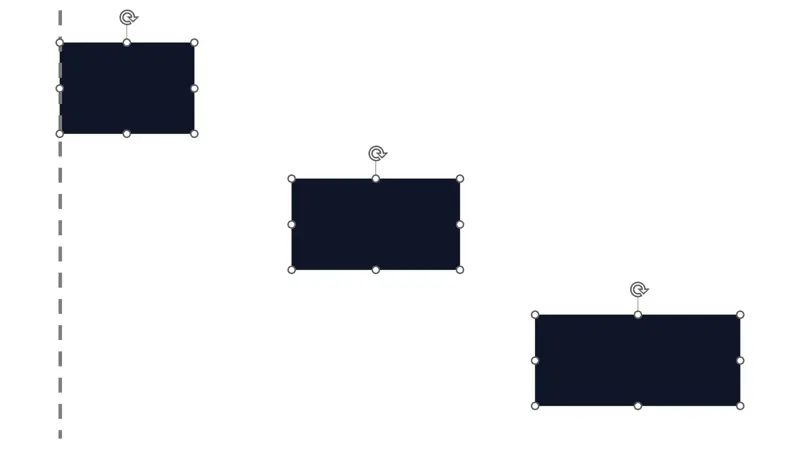
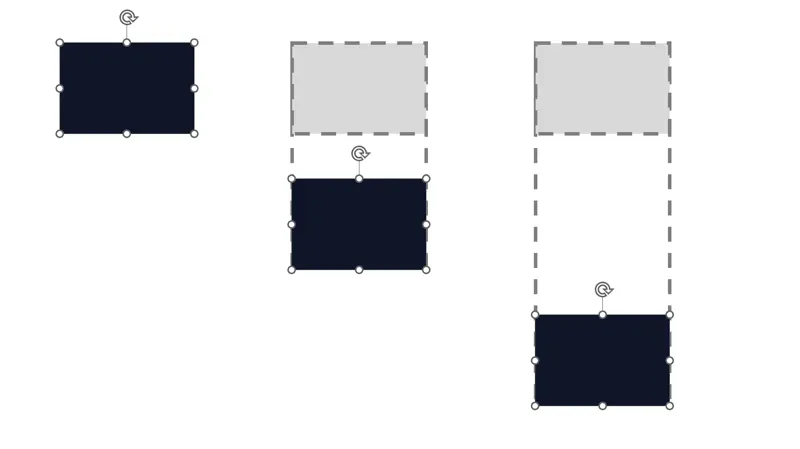
Anyone who uses PowerPoint for work, study, or personal projects. No particular job title or consulting background is required. Use reference alignment, size matching, and Excel transfer in your daily editing. You can use the ribbon and sidebar buttons without learning keyboard shortcuts.
How does it compare with the add-in I used at my firm?
AltShift is an independent PowerPoint add-in. It includes reference alignment, fixed-edge resizing, size matching, Excel transfer, and more. Its features, interface, and keyboard shortcuts may differ from the add-in you used at your firm. It does not include firms' internal templates or assets.
What do I need to run AltShift?
AltShift is an add-in for desktop PowerPoint on Windows 10 / 11. It does not support macOS or PowerPoint in a browser. You need .NET Framework 4.7.2 or later and administrator rights for installation. Compatibility can depend on your PowerPoint version and your organization's settings. Check your setup with Free or the 14-day Standard trial before purchasing.
What can I use for free?
Use core alignment, text editing, sticky-note, axis, shape-table, selection, and row-grouping tools without usage-count or time limits. The included directions and operations vary by feature; see the comparison notes for details. Excel transfer and the color palette are not included in Free. Lite adds directions and finishing tools; Standard adds more fonts, text processing, advanced selection, and Excel transfer. A 14-day Standard trial starts automatically on first launch, then returns to Free. No card or automatic charge.
Will I see tools outside my plan on the ribbon?
You can see tools outside your current plan on the ribbon. These tools are disabled and show the required plan. Higher plans include the features of lower plans.
Do I have to learn keyboard shortcuts?
You can also use the ribbon and sidebar buttons. For tasks you use often, press Alt and then the keys shown on the ribbon, one at a time. There's no need to memorize everything before you start.
How do I activate AltShift after purchasing?
We'll send a license key to the email address you use at checkout. Open License from the AltShift tab in PowerPoint, choose Activation, and enter your key. You don't need to reinstall. If the email doesn't arrive, check your spam folder.
How many devices can I use with one license?
You can activate up to 2 PCs for the same user. A license cannot be shared by multiple people. When changing computers, deactivate your old PC before activating the new one.
Can I install it on my work PC?
Installation requires administrator rights. Your organization's IT policy may also require approval for add-ins or installation by an administrator. Check with your IT department before installing.
How do I cancel?
Use the
subscription management page or the license screen in the add-in. Cancel at least 24 hours before your renewal date to stop future automatic renewals. You can keep using paid features until your billing period ends, then return to Free. The portal also supports Lite-to-Standard upgrades with a prorated quote before confirmation. Your key and renewal date stay the same. Billing interval changes and downgrades are not currently supported. See our
Terms of Service for details.
Are my presentations uploaded?
Normal slide editing happens on your PC. You don't need to upload your presentation files. AltShift connects to our servers for license validation, update checks, and error diagnostics. See our
Privacy Policy for details about data and communication.
Do I need a constant internet connection?
No, but license validation and update checks need a connection. Offline access depends on your subscription's expiry date and the result of the last license check.