AltShift guide Standard

Transfer Excel cells into PowerPoint shapes

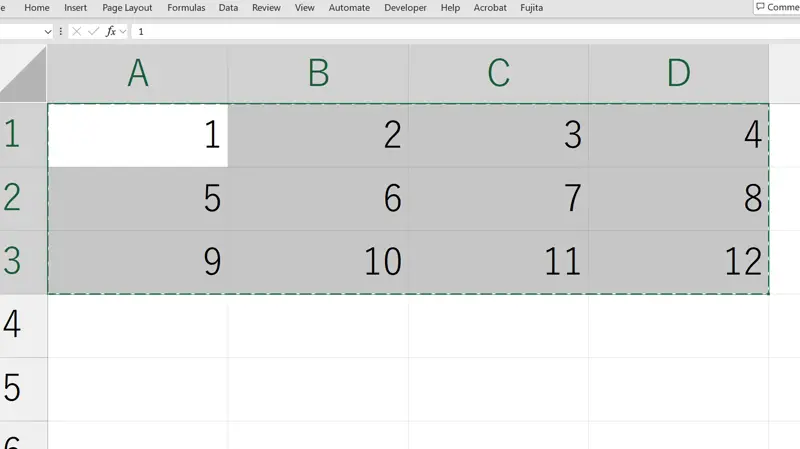
Copy cells in Excel, select existing shapes in PowerPoint, and transfer their contents. This replaces the text in each shape rather than pasting a table as an image.

Excel transfer requires Standard. Try it during the 14-day trial that starts automatically on first launch.

Excel → PowerPoint
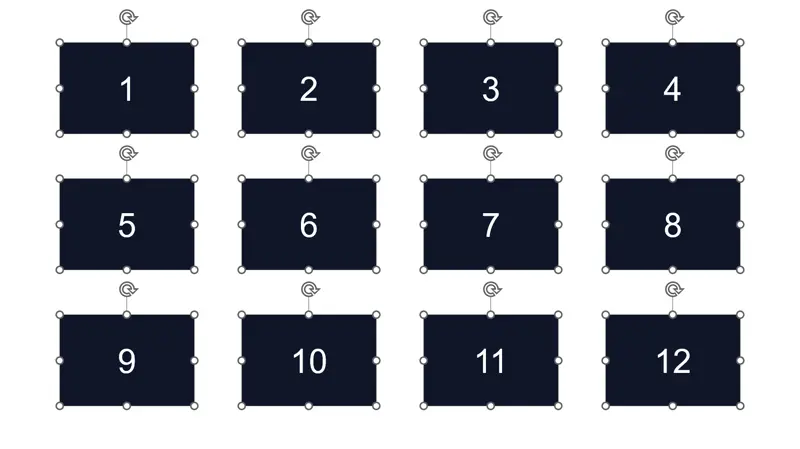
After transfer: numbers 1 to 12 fill the shapes from left to right, row by row.
Twelve cells into twelve existing shapes.Alt → M → VE

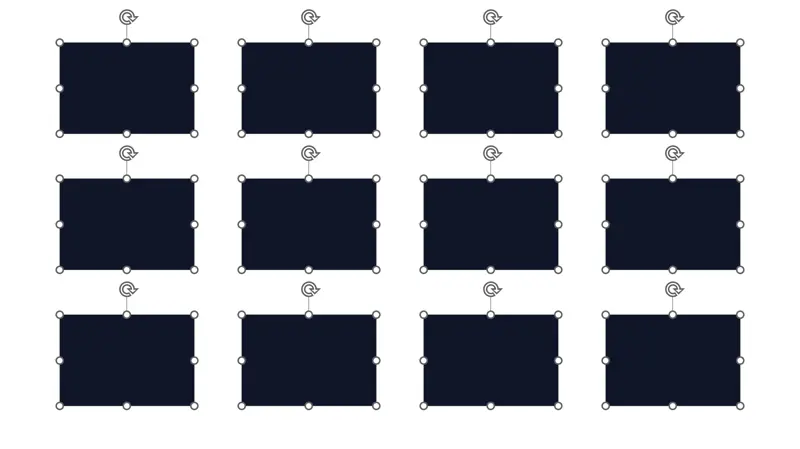
The example uses a 3 × 4 cell range and twelve shapes. There is no automatic Excel synchronization.

Three steps

  1. Copy the cells in Excel

    Select the range containing the text or values you want to transfer, then press Ctrl+C. This example uses three rows and four columns: twelve cells in total.

  2. Select the destination shapes

    Arrange and select the PowerPoint shapes that should receive the text. Using the same row and column layout as Excel makes it easier to check which cell goes where.

  3. Transfer the contents

    On the AltShift tab, run “Transfer Excel cells to objects,” or press Alt → M → VE in sequence. Cells and shapes are each ordered row by row, from top to bottom and left to right, then matched in that order.

When to use it

Update comparison tables built from shapes, value boxes, or labels using content from Excel. Text goes into existing shapes. Text-capable shapes inside groups are included; objects without text input, such as lines, are skipped.

Before you transfer
  • The transfer replaces existing text. An empty Excel cell also clears the text in its corresponding shape.
  • If the cell count differs from the number of text-capable shapes, AltShift transfers the smaller count and then shows a warning. Extra cells are ignored; extra shapes are left unchanged.
  • AltShift does not check that the row and column counts match. The correspondence follows the ordered positions, so check the result when shapes are missing or the layout is irregular.

Common questions

Will later Excel changes update the shapes automatically?
No. This is a clipboard transfer, not a live link. Copy the updated cells and run the transfer again when needed.
Does it copy formulas and cell formatting?
It transfers clipboard text. It does not transfer formulas, cell colors, borders, or Excel formatting settings.

Try it on your own slides

Core alignment, text, sticky-note, axis, and shape-table operations are Free without usage-count or time limits or email/card registration. Included directions and operations vary by feature. Excel transfer and the color palette are excluded. A 14-day Standard trial starts automatically on first launch, then returns to Free. AltShift is for Windows PowerPoint and requires administrator permission to install.

Download Free