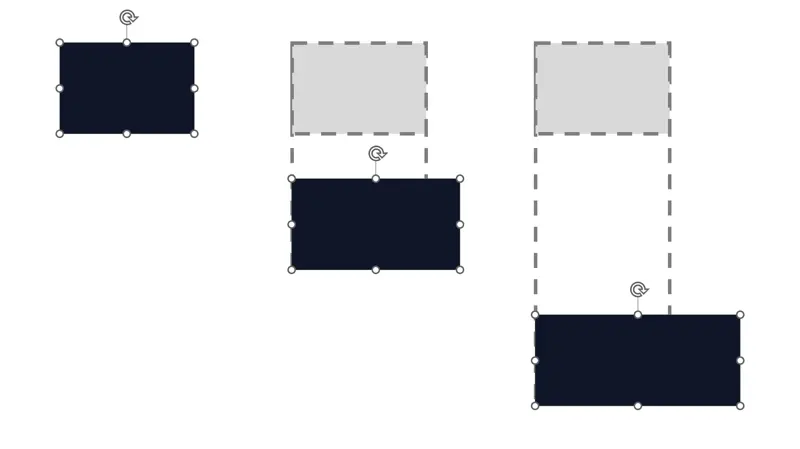
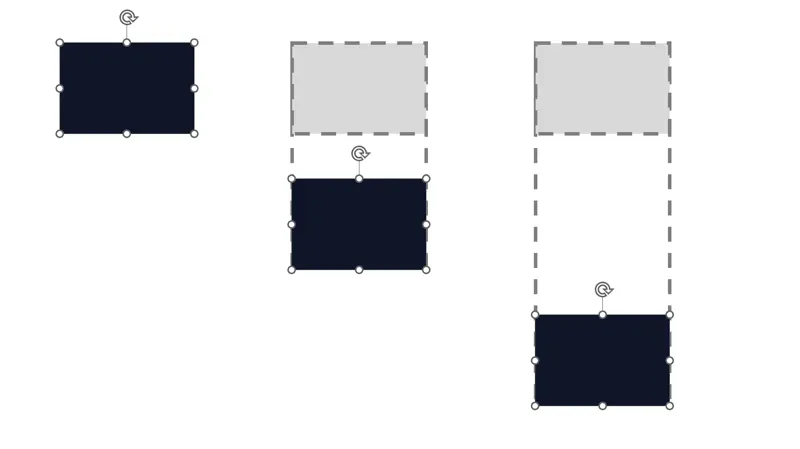
Three steps
Select the reference and target shapes
Shift-click the reference shape and the shapes you want to resize. Size matching needs at least two shapes.
Set the reference shape
On the AltShift tab, choose “First Shape” or “Last Shape” so your example shape becomes the reference. If you used a drag selection, check that the intended shape is the reference.
Match the width or height
Use Alt → M → WR for width, Alt → M → HR for height, or Alt → M → SR for both. Press the characters in sequence, or use the size-matching buttons on the ribbon.
Use Extend to keep one edge in place
Size matching makes dimensions equal. Fixed-edge resizing keeps one edge where it is and moves the opposite edge to the reference shape’s edge.
For example, select the reference and targets, then choose “Extend” → “Extend left (right fixed)” to align the left edges while keeping each target’s right edge in place. Horizontal fixed-edge and opposite-edge resizing, and matching left/right outer edges, are Free. Lite adds vertical resizing and arrow adjustment. Alt → M → E opens the Extend menu.
Before you apply it
- Width and height are compared using bounds that account for rotation. Line thickness and shadows are excluded. This is not proportional scaling that preserves the shape’s width-to-height ratio.
- AltShift stops fixed-edge resizing if the target edge would cross the fixed edge, or if the rotation and requested dimensions cannot produce a valid size.
- With just one shape selected, Extend uses the configured body area as its reference.